
Admin Guide
This guide covers every module available to Super Admins, School Admins, and Principals/SLT in CampusTrack. Each section maps to a screen or settings area in the platform. Use the table of contents below to jump to a specific topic.
Table of Contents
- Dashboard
- Staff Directory
- Zone Management
- Attendance Management
- Leave Management
- Shift Management
- Academic Calendar
- Announcements
- Approval Workflows
- Reports
- Staff Wellbeing
- Email Campaigns
- Feedback & Ratings
- HR Settings
- Self Registration
- Security & Compliance
- System Settings
1. Dashboard
The admin dashboard is the first screen after login. It provides a real-time overview of workforce attendance, pending actions, and school activity for the current day.
- Attendance summary cards — total present, absent, on leave, and late counts for today, updated in real time.
- Pending approvals — a count of leave requests, regularization requests, and announcements awaiting your action. Click any card to go directly to the approval queue.
- Announcement status — shows recently published announcements and their acknowledgement percentage.
- Calendar events — upcoming holidays, school events, and term dates from the academic calendar.
- Zone map — a live map showing configured GPS zones and recent check-in activity per zone.
- Live feed — a chronological stream of check-ins, check-outs, leave submissions, and other staff activity as it happens.
- Branch selector — for multi-campus schools, use the branch dropdown in the header to switch between campuses. All dashboard data, reports, and staff lists filter to the selected branch.
2. Staff Directory
The Staff Directory is the central register of all employees across your school. Admins can add, edit, import, and offboard staff from this module.
Viewing and Searching
- Search and filter — search by name, employee ID, or email. Filter by department, designation, branch, employment status, or zone assignment.
- Staff profile — click any staff record to view their full profile including personal details, employment history, assigned zone, shift, manager, and attendance summary.
Adding Staff
- Add individual — use the Add Staff form to create a single employee record. Required fields include name, email, department, designation, and branch.
- Bulk import (CSV/Excel) — download the import template from the Staff Directory page. Fill in employee details, then upload the file. The system validates data before import and flags duplicates, missing fields, and format errors. Review and fix issues in the preview before confirming.
- Export — export the full staff directory or a filtered subset to CSV or Excel for offline use.
Zone Assignment
- 4-step assignment wizard — assign staff to GPS zones using the wizard. Choose from four assignment modes:
- All — assign every employee in the branch to the selected zone.
- Department — assign all employees in a specific department.
- Current Zone — reassign employees from one zone to another.
- Manual — select individual employees from a searchable list.
Manager Assignment
- Assign managers — set reporting managers for each employee. The manager assignment determines approval routing for leave requests, regularization, and other workflows.
Probation Confirmation
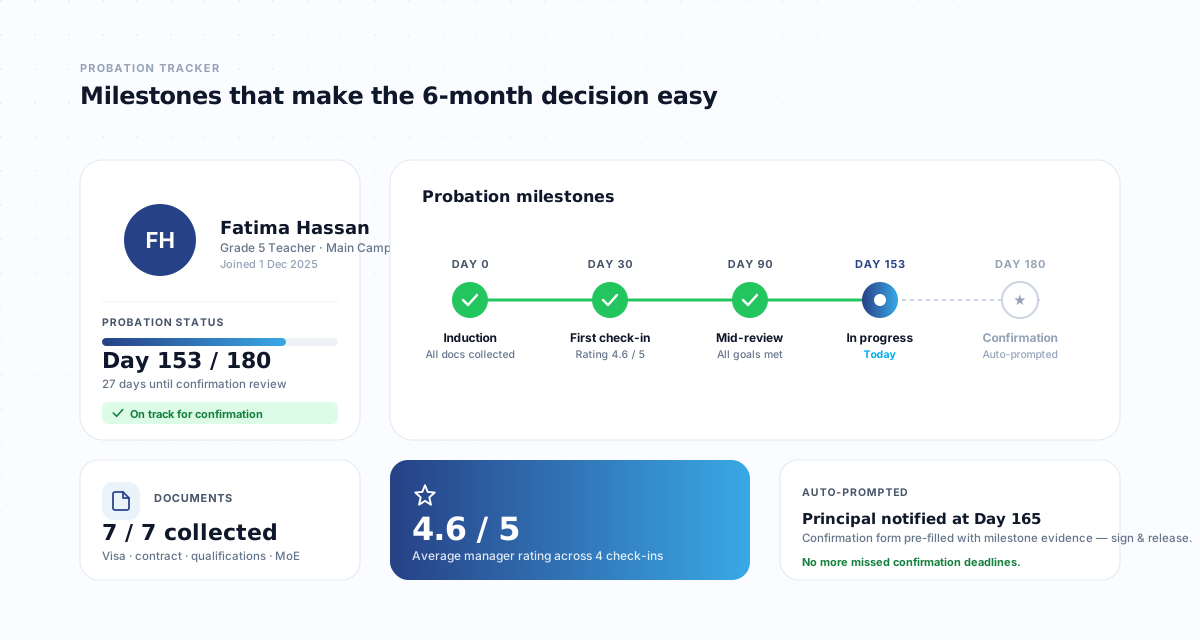
- Confirm probation — when a probation period ends, admins can confirm the employee from the staff profile. Set the confirmation date and probation period days. The employee status changes from On Probation to Active automatically.
Offboarding
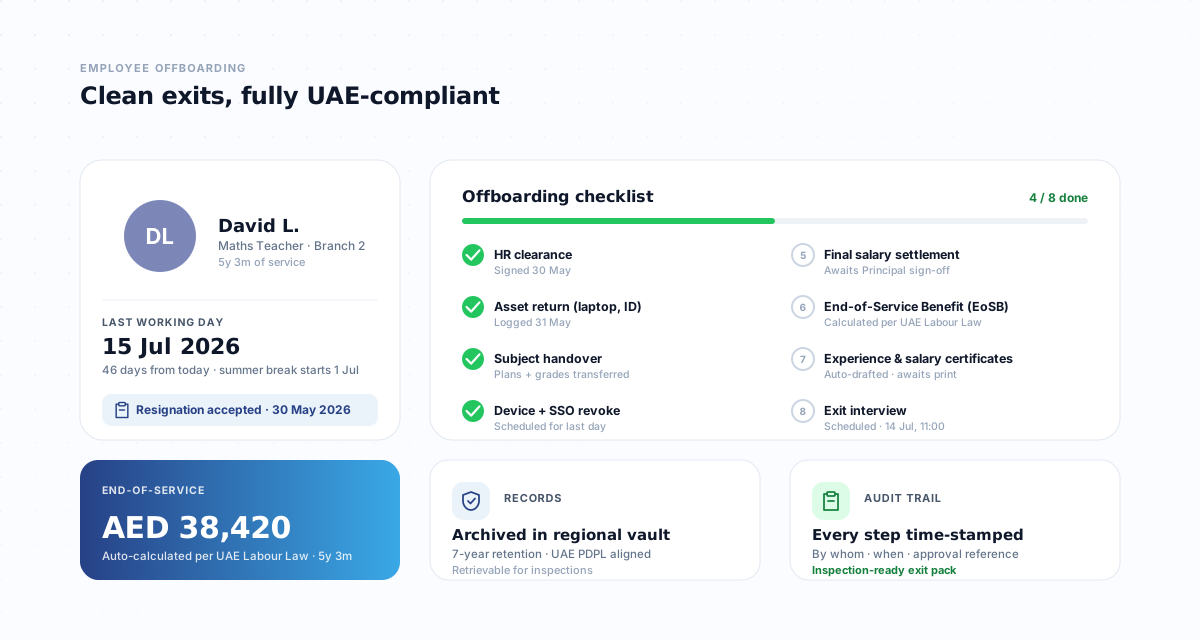
- Status-based offboarding — change an employee status to Terminated, Resigned, or Absconding. The system automatically locks their account, revokes check-in access, and preserves their historical records for reporting.
3. Zone Management
GPS zones define the geographic boundaries within which staff can check in as on-campus. Each zone is a circular geofence plotted on an interactive map.
- Create a zone — navigate to Zone Management and click the map to set the center point. Enter a zone name, latitude, longitude, and radius in meters. The map displays a visual circle overlay showing the zone boundary.
- Edit and delete zones — adjust the center point, radius, or name of any existing zone. Deleting a zone unassigns all staff from it.
- Visual map interface — zones are rendered on an interactive map. You can see all zones for a campus at a glance, zoom in and out, and toggle satellite or street view.
- Per-campus zones — each branch (campus) has its own set of configurable zones. A school with multiple campuses can have different zones per location.
- Assign staff to zones — after creating a zone, use the Staff Directory zone assignment wizard to link employees to it. Staff within any assigned zone can check in as on-campus.
4. Attendance Management
This module provides a real-time view of attendance across all staff and the tools to manage attendance corrections.
Viewing Attendance
- Real-time overview — see who is present, absent, on leave, or yet to check in for the current day.
- Drill-down — filter by date, department, or individual employee. Click any record to view detailed check-in and check-out timestamps with GPS coordinates.
- Check-in/out records — each record shows the timestamp, GPS location, verification method used (GPS, face, or both), and the zone matched.
Attendance Correction (Regularization)
- Regularization requests — when staff miss a check-in or check-out, they can submit a regularization request with a reason. Admins can also create corrections on behalf of staff.
- Multi-level approval workflow — regularization requests follow a configurable approval chain (e.g., Manager then HR). Each approver can approve, reject, or add remarks.
- AI-powered suggestions — the system uses AI to suggest regularization entries based on patterns such as partial check-ins, device issues, or network failures.
5. Leave Management
Configure leave types, allocate balances, and manage the full lifecycle of leave requests from submission through approval.
Leave Type Configuration
- Create leave types — define types such as Annual Leave, Sick Leave, Casual Leave, Unpaid Leave, Emergency Leave, and custom types. Each type has its own rules.
- Leave rules — configure whether weekends are deducted from leave duration, whether unused balance carries forward to the next year, and the carry-forward cap.
Balance Allocation
- 3-step allocation wizard — allocate leave balances in bulk. Step 1: select the leave type. Step 2: choose employees by department, designation, or manual selection. Step 3: set the balance amount and effective period.
- Individual adjustment — adjust a single employee’s balance directly from their profile or the leave balance report.
Approvals and Calendar
- Approve or reject requests — leave requests appear in the admin approval queue. Review the request details, check team availability, and approve or reject with remarks.
- Team calendar — view a calendar showing all approved and pending leave across your team. Helps avoid scheduling conflicts.
- Leave balance reports — view current balances by employee, department, or leave type. Exportable to CSV/Excel.
6. Shift Management
Shifts define expected working hours and are used to calculate late arrivals, early departures, and overtime.
- Create shift templates — define named shifts with a start time, end time, and grace period (minutes allowed for late arrival or early departure before it is flagged).
- Assign shifts to staff — assign shifts individually or in bulk by department. Default shifts apply unless overridden for specific employees.
- Override shifts — assign a different shift to an employee for a specific date or date range. Useful for Ramadan timings, exam schedules, or temporary duty changes.
- Today’s roster — view which shift each employee is assigned to for the current day, including any overrides.
7. Academic Calendar
Manage the school’s academic year structure, terms, holidays, and events from a single calendar interface.
- Academic years and terms — create academic years and divide them into terms or semesters. Terms define the date ranges used in attendance and reporting calculations.
- Holidays — add public holidays, school-specific holidays, and professional development days. Holidays are excluded from attendance calculations and leave deductions automatically.
- School events — add events such as parent-teacher conferences, sports days, or staff meetings. Events appear on the dashboard calendar and in staff notifications.
- SLT approval workflow — calendar events can require approval from Principal or SLT before they are published. Submitted events remain in draft until approved.
- CSV import — import a batch of holidays or events from a CSV file. Download the template, fill in dates and event names, and upload.
- Monthly calendar view — browse the calendar by month to see all holidays, events, and term boundaries in one view.
8. Announcements
Create and publish announcements to staff with targeting, approval workflows, and read tracking.
- Create announcements — use the rich text editor to compose announcements with formatting, links, and images.
- Target audience — target announcements to specific departments, roles, or branches. Only staff matching the target criteria will see the announcement.
- Approval lifecycle — announcements follow a Draft → Submit for Approval → Publish lifecycle. Submitted announcements are reviewed by the designated approver before they go live.
- Acknowledgement tracking — after publishing, track which staff members have read and acknowledged the announcement. View read percentages and follow up with those who have not acknowledged.
- AI-assisted drafting — use AI to draft or enhance announcement text. Provide a brief description and the system generates a polished draft that you can edit before submitting.
9. Approval Workflows
CampusTrack uses configurable multi-level approval chains for leave requests, attendance regularization, announcements, and calendar events.
- Configure approval chains — define who approves what. Set up single-level (Manager only) or multi-level (Manager then HR then Principal) chains for each approval type.
- Routing rules — define routing based on department, leave type, or request value. For example, leave requests over 5 days can require an additional level of approval.
- Delegation — set a delegate approver who acts on behalf of an absent approver. Delegation prevents requests from being stuck when an approver is on leave.
- Preview routing — before saving a workflow configuration, preview how a sample request would be routed through the chain to verify correctness.
- Approval history timeline — every request maintains a full timeline showing each approval step, the approver, their action (approved/rejected), timestamp, and any remarks they added.
10. Reports
CampusTrack includes a comprehensive set of reports covering attendance, leave, payroll inputs, and staff data. All reports can be filtered by date range, department, and branch, and exported to CSV, Excel, or PDF.
Attendance Reports
- Team Attendance Report — daily, weekly, or monthly attendance summary for all staff. Shows present, absent, late, and on-leave counts.
- Monthly Attendance Grid — a color-coded day-by-day grid for the entire month. Each cell shows the status (present, absent, half-day, leave, holiday) with color coding for quick visual scanning.
- Attendance Events — a detailed log where each check-in and check-out appears as a separate row. Includes timestamp, GPS coordinates, verification method, and zone.
- Regularization Report — all regularization requests with their current status (pending, approved, rejected), original and corrected times, and approver remarks.
Leave Reports
- Leave Balance Report — current leave balances for all employees by leave type. Shows allocated, used, and remaining days.
- Leave Details Report — individual leave records with dates, type, status, and approval chain history.
Payroll and Staff Reports
- Salary Report — attendance-based salary calculations showing working days, absent days, late deductions, and overtime for each employee. Used as input for payroll processing.
- Staff Directory Report — a full export of staff data including personal details, department, designation, zone, shift, and employment status.
Audit
- Audit Log — a chronological log of all admin actions in the system. Each entry shows the user, action, target record, timestamp, and origin information.
11. Staff Wellbeing
The wellbeing module gives admins visibility into workforce wellness trends and helps identify staff who may need support.
- Admin wellbeing dashboard — an overview of overall wellness scores across the organization, with trend lines over time.
- Team wellness scores — view aggregated wellness scores by department or team. Drill down to individual scores where permitted.
- Burnout risk analysis — the system flags employees at risk of burnout using attendance patterns, overtime frequency, and leave usage. Risk levels are categorized as Low, Medium, High, or Critical.
- Workload heatmaps — visual heatmaps by department showing workload distribution, overtime trends, and potential imbalances.
- Support request management — review and respond to support requests submitted by staff through the wellbeing module.
- Peer recognition overview — view peer-to-peer recognition activity across the school. See who is giving and receiving recognition and identify engagement patterns.
12. Email Campaigns
Send targeted email communications to staff using a built-in campaign manager with template design, scheduling, and tracking.
- Drag-and-drop editor — design email templates using the built-in visual editor. Drag content blocks (text, images, buttons, dividers) into your layout without writing code.
- Template library — save templates for reuse. Pre-built templates are available for common scenarios such as welcome emails, policy updates, and event invitations.
- Recipient segments — define recipient lists by department, role, branch, or custom criteria. Segments update dynamically as staff records change.
- Schedule and send — send campaigns immediately or schedule them for a future date and time.
- Track opens and clicks — after sending, view delivery rates, open rates, and click-through rates. Identify which recipients opened the email and which links they clicked.
13. Feedback & Ratings
Collect structured feedback from staff through surveys and post-check-in rating prompts.
- Create feedback surveys — build custom surveys with multiple question types and distribute them to targeted groups.
- Post-check-in star rating — configure a star rating popup that appears after staff complete their check-in. Staff rate their day on a 1–5 scale with an optional comment.
- Skip and blackout periods — set how frequently the rating popup appears (e.g., every check-in, once a week) and define blackout periods where it does not show.
- Response analytics dashboard — view average ratings, response rates, and trends over time. Filter by department, date range, or rating value.
- Export feedback data — export all feedback responses and ratings to CSV for further analysis.
14. HR Settings
HR Settings contains the master data and configuration for attendance, leave, shifts, and employee management.
- Attendance types master — manage the list of attendance statuses used across the system (e.g., Present, Absent, Half-Day, Work from Home, Field Duty).
- Leave type CRUD — create, edit, and deactivate leave types. Each type has configurable rules including balance amounts, deduct_weekends (whether weekends count against leave), carry-forward settings, and is_active status.
- Shift template management — create and edit shift templates that can be assigned to staff. Manage start times, end times, and grace periods from a single list.
- Regularization reason library — maintain the list of reasons staff can select when submitting a regularization request (e.g., Forgot to Check In, Network Error, Device Issue).
- Employee status management — configure the employee statuses available in the system (e.g., Active, On Probation, Terminated, Resigned, Absconding). Status changes trigger automatic account actions.
15. Self Registration
Allow new employees to register themselves using an invite code, reducing the manual data entry burden on admins.
- Manage pending registrations — view a queue of employees who have self-registered and are awaiting admin approval. Review their submitted details before approving.
- Approve or reject — approve a registration to create the employee record and grant system access, or reject it with a reason.
- Invite codes — generate invite codes that employees use during self-registration. Codes can be single-use or multi-use, and can be set to expire after a date.
- Domain restriction — restrict self-registration to specific email domains (e.g., only @yourschool.ae). Registrations from other domains are automatically rejected.
16. Security & Compliance
Configure anti-fraud measures, device controls, and data protection settings to meet regulatory requirements.
Anti-Fraud and Device Controls
- GPS spoofing detection — configure sensitivity settings for detecting fake GPS locations. The system flags check-ins from emulated or spoofed GPS sources.
- Device binding — enforce that each employee can only check in from a registered device. Prevents check-in from unauthorized phones.
- Velocity anomaly detection — configure thresholds for detecting physically impossible location changes (e.g., two check-ins from distant locations within minutes).
PDPL Compliance (UAE Personal Data Protection Law)
- Privacy policy management — upload and manage your school’s privacy policy. Staff see and acknowledge the policy during onboarding.
- DPO settings — designate a Data Protection Officer and configure their contact details for data subject requests.
- Data breach logging — record and track any data breaches with timestamps, scope, and remediation actions taken.
- Data rights requests — process employee requests for data access, correction, or deletion in compliance with PDPL requirements.
- Employee anonymization — anonymize personal data for offboarded employees while preserving aggregate attendance and reporting data.
17. System Settings (Super Admin Only)
System Settings is restricted to Super Admins and contains the foundational configuration for the entire CampusTrack instance.
Organization and Branches
- Organization setup — configure the school name, logo, timezone, academic year format, and contact information.
- Branch management — create and manage branches (campuses). Each branch has its own staff roster, zones, shifts, and reporting. Multi-campus schools operate with one organization and multiple branches.
- Geographic masters — manage the master lists of countries, states, and cities used in staff profiles and branch addresses.
Attendance and Verification
- Attendance mode configuration — choose which verification methods are active: GPS only, GPS + Face Recognition, Biometric, or a combination. Modes can be set per branch.
- Face registration admin panel — manage face registration for staff. View registration status, re-register faces, and troubleshoot recognition issues.
Email and SSO
- Email delivery — configurable outgoing email for system notifications, announcements, and email campaigns. Detailed email-delivery settings are managed by your CampusTrack operator and available in your customer admin area after sign-in.
- Single sign-on — enable Single Sign-On with major identity providers. Staff log in using their existing school identity-provider accounts.
Roles and Permissions
- Role permissions management — CampusTrack has 5 built-in roles (Super Admin, School Admin, Principal/SLT, Manager, and Employee) with 34 configurable permissions. Permissions control access to modules, data visibility, and action capabilities (e.g., can approve leave, can view reports, can manage zones).
Audit and Maintenance
- Audit log viewer — browse the full audit trail of all admin and system actions. Filter by user, action type, date range, or target record.
- Platform upgrades — CampusTrack platform upgrades, schema management, and operator maintenance tasks are handled by the CampusTrack operations team. Customer admins do not need to manage these directly.
Need help with configuration?
Our team handles initial setup. Reach out if you need any changes.